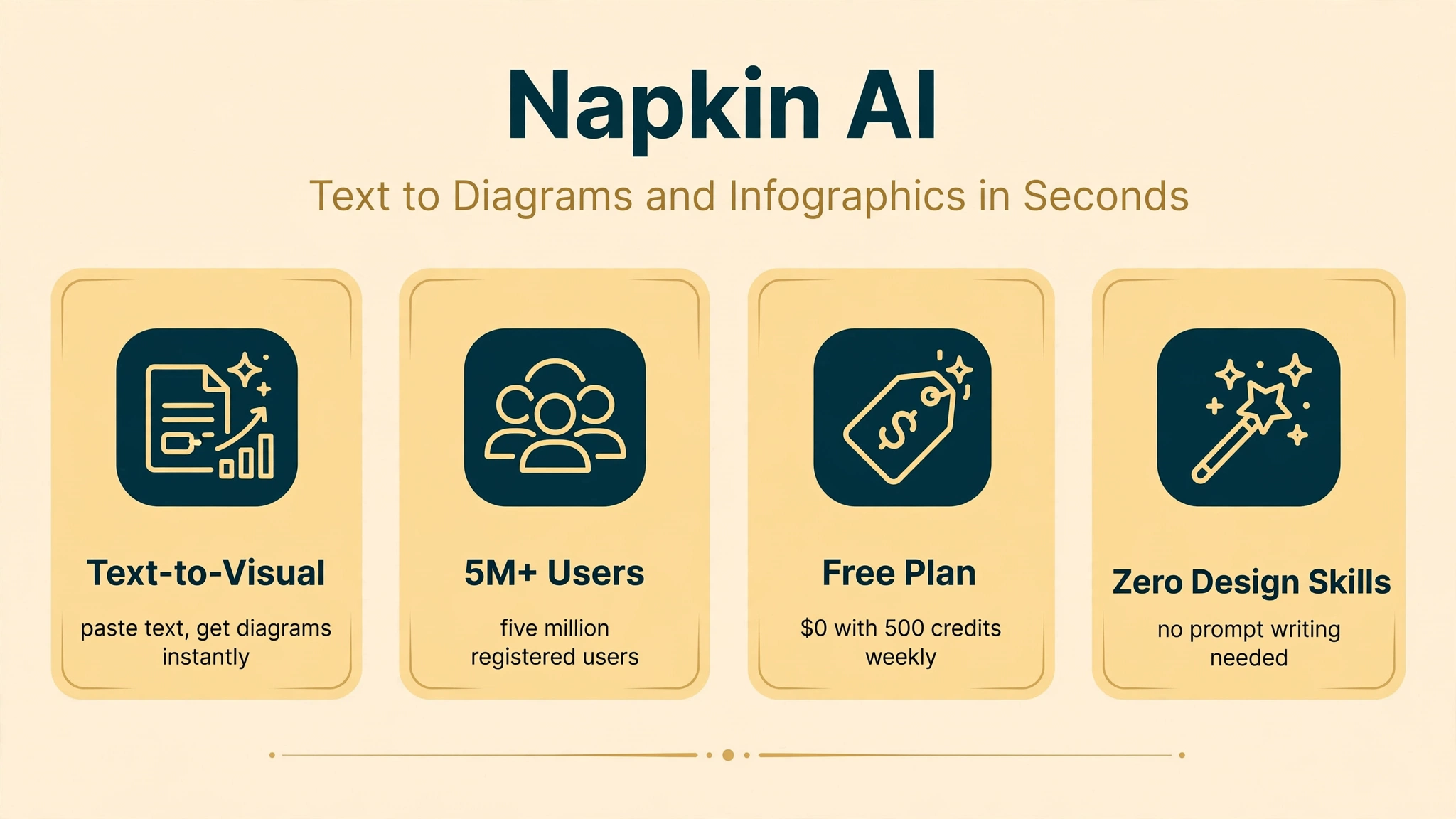
You wrote a brilliant paragraph, and now you need a diagram to explain it, which means opening a design tool you barely know. Napkin AI erases that pain: it is a browser-based tool that turns your text into professional diagrams, infographics, flowcharts, and mind maps in seconds, with zero prompt engineering and zero design skills required. Paste your words, pick a visual, and drop it into your deck.
We researched Napkin AI’s 2026 feature set, credit-based pricing, and independent reviews to judge whether it lives up to its 5 million registered users. The verdict from testers: it is the fastest path from a paragraph to a presentation-ready visual, especially for consultants, marketers, and educators, though it works best as a visual drafting tool rather than a full design suite.
In this guide we explain what Napkin AI is, how the text-to-visual engine works, what the free, Plus, and Pro plans include, whether it is safe for business use, and how it compares to Gamma, Canva, and Miro, so you can decide if it earns a place in your workflow.
Quick Answer
Napkin AI is a browser-based text-to-visual tool created by Jerome Scholler and Pramod Sharma, the founders behind AI gaming company Osmo. Available at napkin.ai, it analyzes the structure of your writing, steps, comparisons, hierarchies, timelines, and proposes matching diagram types automatically. You paste or import text, highlight a section, choose from generated visual options, customize the style, and export. The free plan includes 500 AI credits per week with PNG and PDF export, while Plus costs $9 per person per month and Pro costs $22 per person per month, adding PPT and SVG export, branding controls, and far more credits.
What Is Napkin AI?
Napkin AI was built around a simple observation: most people think and communicate in writing long before they design a visual, yet turning that writing into a diagram usually means starting over in a separate design tool. Napkin closes that gap by treating text as the source of truth. You write or paste your content into a document-style editor, highlight a paragraph, and the AI generates visual options matched to the underlying logic of what you wrote.
This positioning matters. Napkin is not a presentation-deck generator and not a general design canvas like Canva or Figma. It is a visual layer that sits on top of writing. Because of this, it is most often used alongside tools like Google Slides, PowerPoint, or Notion rather than replacing them: you generate a visual in Napkin, refine its style, and drop it into whatever document or deck you are building elsewhere. With more than 5 million registered users as of 2025, that workflow has clearly struck a chord.
The product is aimed squarely at people who write for a living and need to communicate visually without learning design software: consultants building client proposals, analysts turning findings into charts, content marketers creating blog and LinkedIn visuals, educators preparing lecture materials, and product managers documenting workflows. It supports text in more than 60 languages, so visuals come out in whatever language you write in.
How Does Napkin AI Work?
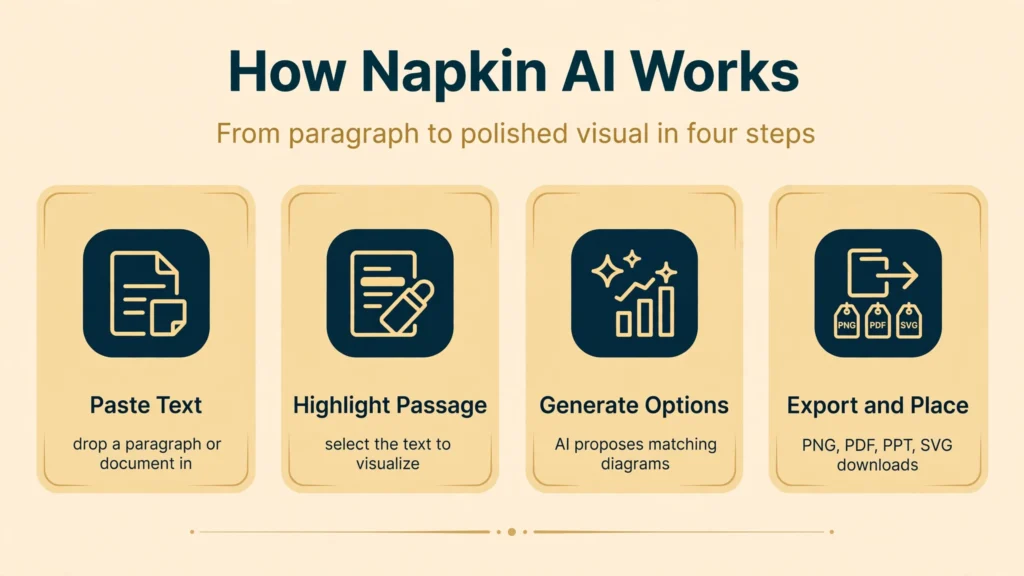
The workflow has four steps and no learning curve. First, you paste text into Napkin or import a document; unlimited text importing is included even on the free plan. Second, you highlight the specific passage you want visualized, anything from a short paragraph to a multi-step process description. Third, you click generate, and Napkin’s AI analyzes the structure of your selection and proposes several diagram options, flowcharts for processes, comparison layouts for versus-style content, timelines for sequences, hierarchies for org structures, and infographic styles for data-heavy text.
Fourth, you customize. Every generated visual stays fully editable: swap layouts, change colors and fonts, restyle icons, and tweak the text until it matches your message. Brand controls on paid plans let you lock in company colors, upload custom fonts, and apply consistent styles across visuals. When it looks right, you export in PNG, PDF, SVG, or PPT formats depending on your plan, then place the file into your slides, docs, or posts.
Under the hood, the key insight is structural analysis rather than prompt interpretation. Napkin does not need you to describe the diagram you want; it infers the right visual form from how your writing is organized. That is why input quality matters so much: concrete steps, facts, and comparisons produce sharp visuals, while vague, abstract themes produce vague diagrams. The discipline is in the writing, not the tool.
For teams, shared workspaces allow real-time comments on diagram elements, so reviewers can give feedback directly on visuals during proposal cycles. Note that creating and editing are desktop-browser only; mobile support is limited to viewing, so serious work happens on a computer.
Key Features of Napkin AI
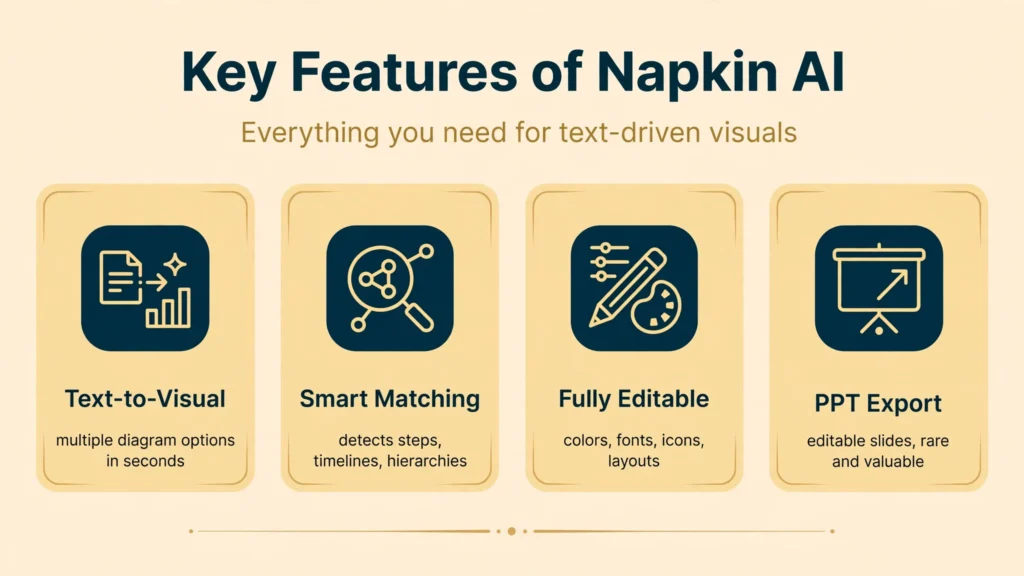
- Text-to-visual generation: Paste or import text, highlight a passage, and get multiple diagram options in seconds with no prompt writing.
- Smart diagram matching: The AI detects steps, comparisons, hierarchies, and timelines in your writing and proposes the visual form that fits.
- Infographics, flowcharts, and mind maps: A wide range of visual types covering processes, data, org structures, and conceptual maps.
- Fully editable outputs: Change layouts, colors, fonts, icons, and text after generation; nothing is baked in.
- Brand styles and custom branding: Save brand kits with your colors and fonts on paid plans for consistent, client-ready visuals.
- PPT, SVG, PNG, and PDF export: Export formats that drop straight into PowerPoint, Google Slides, docs, and the web. For dedicated image creation tools, see our Freepik AI | AI Image Generator, Features, Pricing, And More guide.
- 60+ language support: Generate visuals from text written in dozens of languages.
- Team collaboration: Shared workspaces with real-time comments on diagram elements for review cycles.
- Unlimited text import: Bring in full documents and generate as many visuals as your credits allow.
- Bold and exclusive icon sets: Higher tiers unlock distinctive icon designs that make visuals look less templated.
Is Napkin AI Free?
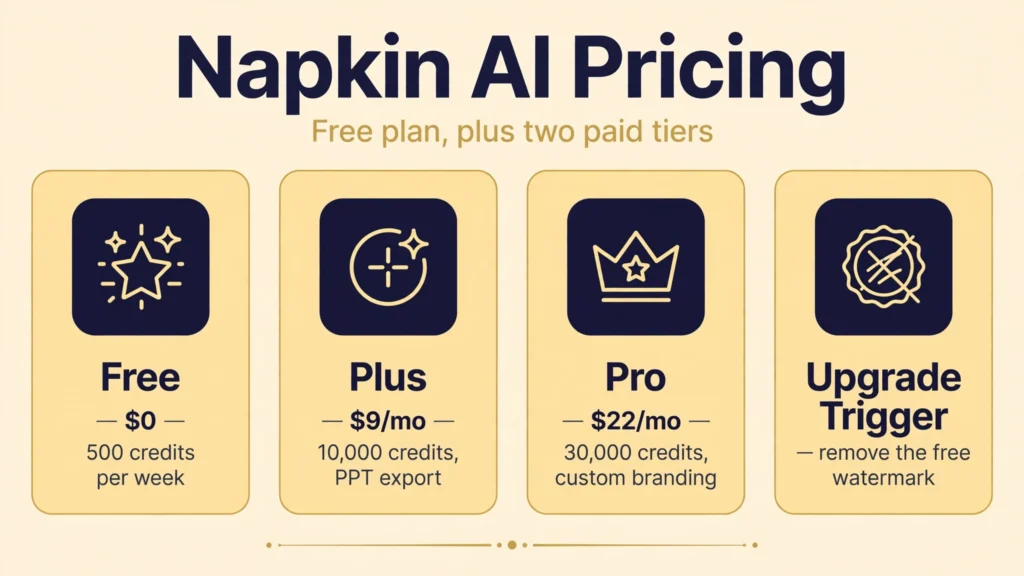
Yes, Napkin AI has a genuinely usable free plan, and many occasional users never need to upgrade. Based on the official pricing page as checked in 2026:
- Free ($0): 500 AI credits per week, unlimited text importing and editing, PNG and PDF export, and built-in styles and fonts. Exports carry Napkin branding. Since a visual generation uses roughly 1 credit per word selected, the weekly allowance covers a comfortable number of visuals for light use.
- Plus ($9 per person per month): 10,000 AI credits per month, PPT, SVG, PNG, and PDF export, removal of Napkin branding, 3 brand styles, and bold icon designs. The sweet spot for regular creators who publish visuals publicly.
- Pro ($22 per person per month): 30,000 AI credits per month, everything in Plus, plus custom branding with font uploads, exclusive icon designs, and team collaboration and billing features. Built for heavy users and client-facing work.
Annual billing discounts apply. The honest upgrade trigger is the watermark: free-tier visuals carry Napkin branding, which is fine for internal drafts but not for client decks or published content. If your visuals go somewhere that matters, Plus pays for itself the first time you export a clean diagram. If you need complete slide decks rather than individual visuals, compare with our Hotpot AI | AI Image Tools, Features, Pricing, And More coverage of broader creative suites.
How to Use Napkin AI
- Step 1: Open napkin.ai in a desktop browser. Create a free account. Remember that creating and editing require a desktop; mobile is view-only.
- Step 2: Paste or import your text. Drop in the paragraph, process description, or data summary you want visualized. Concrete steps and facts work best.
- Step 3: Highlight the key passage. Select the specific text that should become one visual. One clear idea per visual gives the cleanest results.
- Step 4: Generate visual options. Click the generate button and review the proposed diagrams. Napkin usually offers several layout directions for the same text.
- Step 5: Customize the style. Adjust colors, fonts, icons, and layout. On paid plans, apply your saved brand style for instant consistency.
- Step 6: Export and place. Download as PNG or PDF on free, or PPT and SVG on paid plans, then insert the visual into your slides, document, or post.
- Step 7: Iterate on the writing. If a visual comes back vague, rewrite the source text as sharper bullet points and regenerate. Better input beats a higher tier every time.
Is Napkin AI Safe?
Napkin AI is a legitimate venture-backed product with millions of registered users, and there are no widespread reports of security incidents. It operates as a standard cloud SaaS tool: your text and visuals are stored on its servers, and team plans add the usual collaboration access controls.
Standard cloud caution applies. Avoid pasting highly confidential strategy documents, unreleased financial figures, or personal data you would not want on a third-party server, especially on the free tier. For most business storytelling, marketing content, and educational material, the risk profile is the same as using Google Docs or any mainstream online editor.
One practical consideration for client work: reviewers note that a trained eye can sometimes spot AI-generated visuals, so for brand-critical deliverables, treat Napkin output as a fast first draft and have a designer refine it, or use it for internal and everyday content where speed matters more than bespoke polish. For checking whether text reads as AI-written, see Winston AI | AI Content Detector, Features, Pricing, And More.
Napkin AI Pros and Cons
Pros
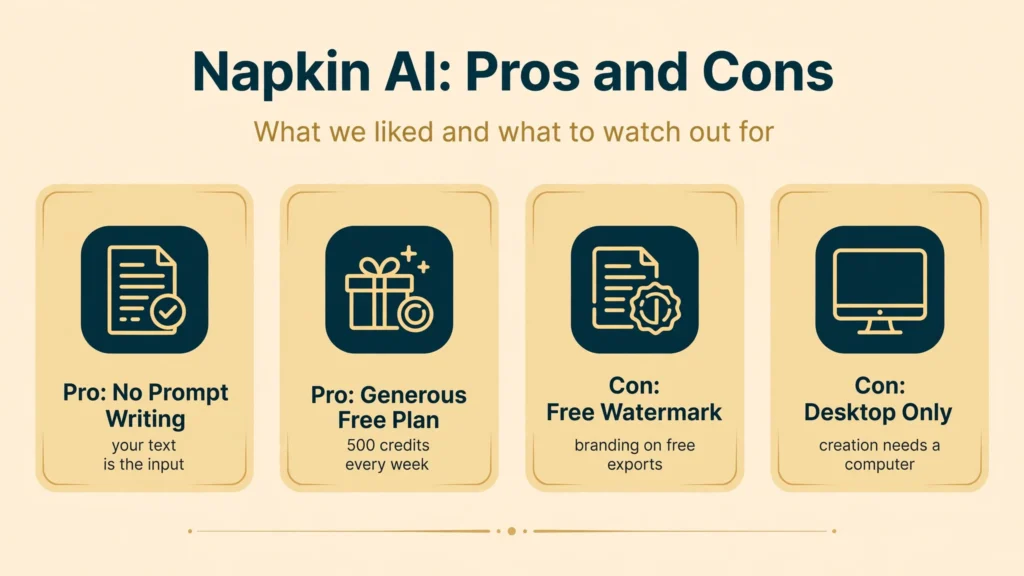
- No prompt writing needed; your existing text is the input.
- Several diagram options generated in seconds from one highlight.
- Everything stays fully editable after generation.
- Generous free plan with 500 credits per week.
- PPT export stays editable in PowerPoint, which is rare and valuable.
- 60+ languages and real-time team comments.
Cons
- Napkin branding watermark on the free plan.
- Layouts can start repeating with very heavy use.
- No strict manual picker for diagram type; you choose from what the AI proposes.
- Desktop-only creation; mobile is view-only.
- No direct integrations; exports must be manually placed into slides or docs.
- Not a full deck builder or a replacement for professional design tools.
Napkin AI vs Alternatives
Napkin AI vs Gamma: Gamma builds complete AI slide decks from a prompt, while Napkin creates individual visuals from your text. If you need a whole deck in under a minute, Gamma wins; if you need one perfect diagram to drop into an existing deck, Napkin is faster and more precise. Many users pair them. An independent hands-on review of Napkin’s strengths and limits is available in this Napkin AI review.
Napkin AI vs Canva: Canva is a full design platform with templates, brand kits, and AI features, ideal when you want total creative control. Napkin is better when you already have the words and just need the visual now, with no template hunting. Canva wins on control; Napkin wins on speed from text.
Napkin AI vs Miro: Miro is a collaborative whiteboard for brainstorming, workshops, and organizing ideas with a team. Napkin is a solo creation tool for turning finished text into polished visuals. Use Miro to discover the idea with colleagues, then Napkin to visualize the conclusion for your proposal.
Napkin AI vs Beautiful.ai: Beautiful.ai enforces brand-consistent slide design across teams with smart templates. It is the pick when every deck must look identical; Napkin is the pick when you need arbitrary diagrams from arbitrary text, fast.
Best Napkin AI Alternatives
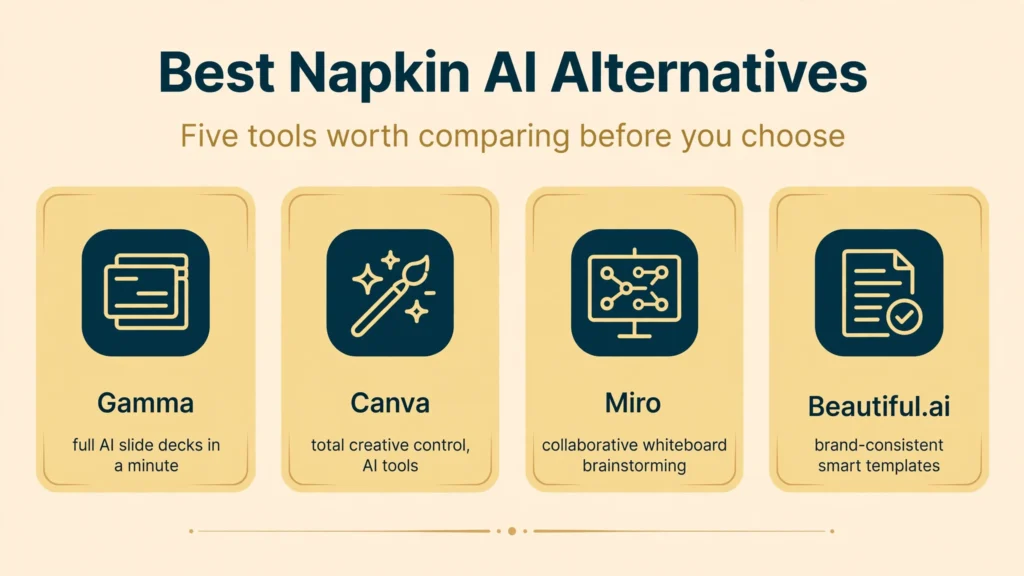
Gamma. Generates complete presentations from a text prompt in under a minute, with modern templates and easy sharing. Best when you need full decks, not single visuals.
Canva. The all-round design platform with AI image tools, brand kits, and thousands of templates. Best when you want full creative control over every element.
Miro. A collaborative visual workspace for brainstorming, diagramming, and workshops with timers, voting, and shared boards. Best for team-driven visual thinking.
Beautiful.ai. Smart slide templates that keep team decks perfectly on-brand with minimal effort. Best for organizations standardizing presentation design.
Whimsical. Fast flowcharts, wireframes, and mind maps with a clean, minimal aesthetic. Best for product teams documenting flows and structures quickly.
Who Should Use Napkin AI?
Napkin AI fits anyone who writes extensively and needs visuals on deadline: consultants turning analysis into client-ready diagrams, content marketers illustrating blog posts and LinkedIn content, educators visualizing lessons, founders building pitch visuals, and product managers documenting workflows. If your job involves explaining ideas to other people, Napkin shortens the distance between your draft and a visual that lands.
It is a weaker fit for professional designers who need pixel-level control, for teams wanting fully automated publishing pipelines, since exports must be placed manually, and for mobile-first users, since creation is desktop-only. If you need entire designed decks rather than individual graphics, start with a deck builder and use Napkin as the diagram specialist inside your process.
Tips for Better Napkin AI Visuals
The single biggest lever is input quality. Napkin reads structure, so feed it structure: rewrite vague paragraphs into numbered steps, two-column comparisons, or cause-and-effect chains before generating. “Our onboarding has five steps” becomes a flowchart; “Option A versus Option B” becomes a comparison layout. Abstract themes without specifics will always produce mushy visuals, on any plan.
Second, generate more options than you need. Napkin typically proposes several directions for the same text, and the third option is often better than the first. Third, build a brand style early on a paid plan: once your colors, fonts, and icon preferences are saved, every visual comes out client-ready with one click, which is where the real time savings compound. Finally, keep one idea per visual. Crowding three arguments into one diagram guarantees clutter; three focused visuals in a row read far better in any deck.
FAQs
Is Napkin AI really free?
Yes. The free plan costs $0 and includes 500 AI credits per week, unlimited text importing and editing, and PNG and PDF export. Free exports include Napkin branding. Paid plans start at $9 per person per month for Plus.
Can Napkin AI export to PowerPoint?
Yes, on paid plans. Plus and Pro include PPT export, and PPTX files stay editable in PowerPoint, which reviewers call rare and valuable. The free plan is limited to PNG and PDF exports.
Does Napkin AI work on mobile?
Only for viewing. Napkin’s official FAQ says creating and editing visuals are desktop-browser only, so do your serious work on a computer and use mobile to review results.
What kinds of visuals can Napkin AI create?
Napkin creates infographics, diagrams, flowcharts, mind maps, timelines, hierarchies, comparison layouts, and data charts. The AI proposes the visual type based on the structure of the text you highlight.
Is Napkin AI better than Canva?
They solve different problems. Napkin is faster when you already have text and need a diagram now, with no templates or prompt writing. Canva offers far more creative control across full designs. Many creators use Napkin for quick diagrams and Canva for finished design work.
Conclusion
Napkin AI nails a specific, painful job: turning the words you already wrote into a visual worth sharing, in seconds and without design skills. For consultants, marketers, educators, and anyone who explains ideas for a living, it is one of the fastest productivity upgrades available, and the free plan’s 500 weekly credits are genuinely enough to prove it on your real work.
Know its lane and it will not disappoint. It is a brilliant visual drafting tool, not a full design studio or deck builder, and its best results come from well-structured writing rather than vague prompts. Start free, upgrade to Plus when the watermark starts appearing where clients can see it, and keep a designer in the loop for the deliverables where polish is everything.
Discover More: