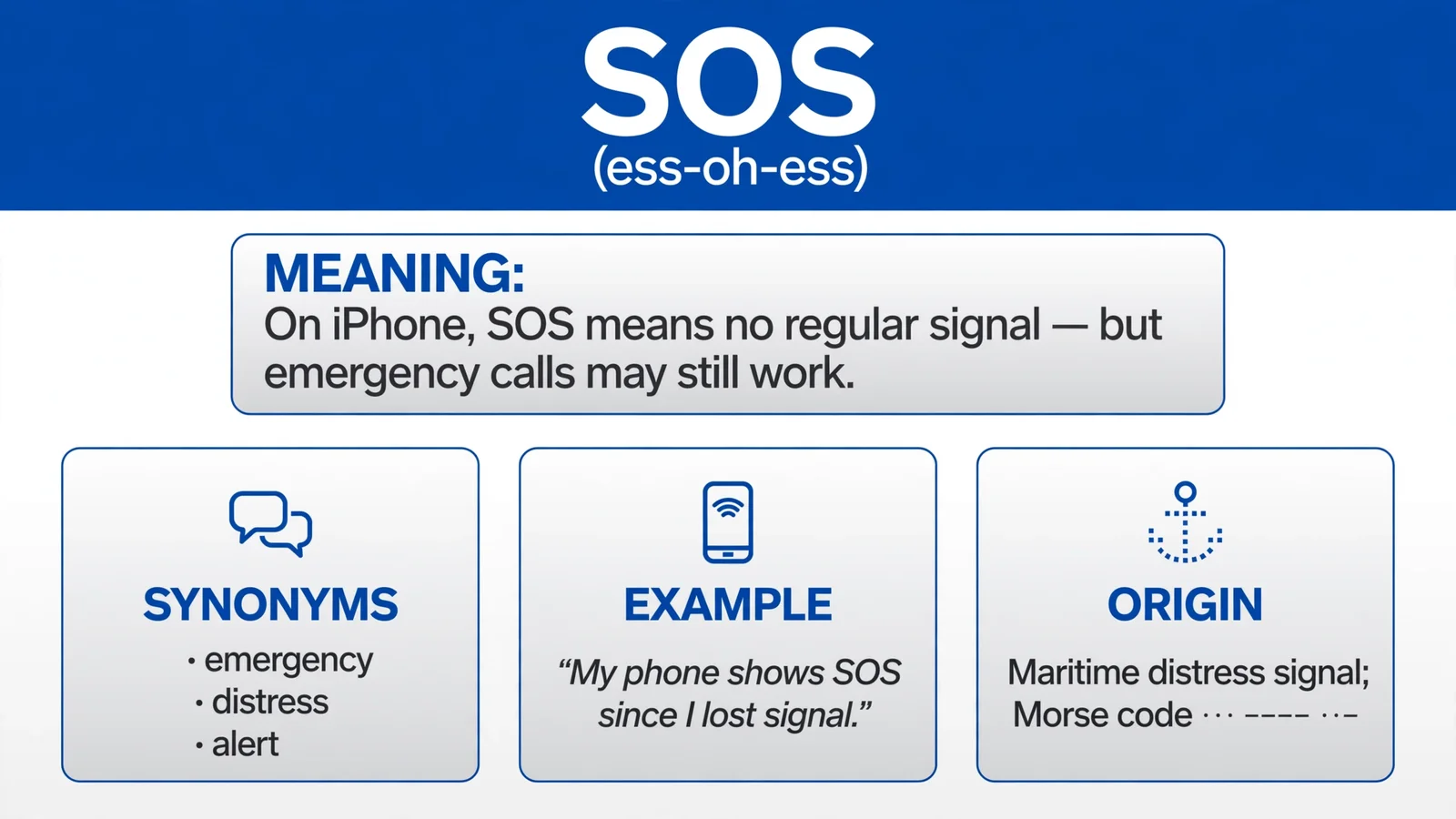
Seeing SOS at the top of your iPhone can make you think something serious has happened.
But the message does not automatically mean your iPhone has entered an emergency mode. In most cases, it means your iPhone is not connected to your normal cellular network.
Apple explains that when “SOS” or “SOS only” appears, your iPhone may still be able to make emergency calls through other available carrier networks, depending on your country or region.
Pronunciation: /es-oh-es-meen-on-EYE-fohn/
This is why the alert can look scary while your phone still has an important safety feature available.
You may see it after losing cellular coverage, experiencing a carrier problem, using a SIM or eSIM with an issue, or traveling where your usual network is unavailable.
In supported situations, iPhone can also display SOS-related satellite options when cellular and Wi-Fi coverage are unavailable.
In this guide, you’ll learn what SOS means on iPhone in 2026, why it appears, what “SOS only” means, and what you can do to reconnect your phone to your cellular network.
Definition & Meaning of SOS on iPhone
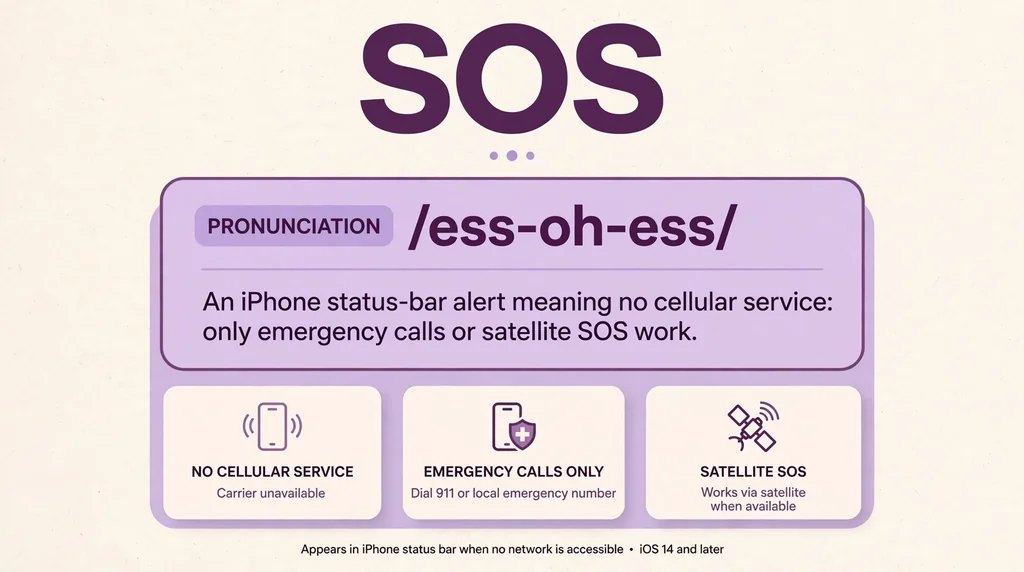
SOS on iPhone means your device is not connected to your regular cellular network, but emergency calling may still be available through another carrier network.
It is a status-bar indication, not necessarily a sign that your iPhone has automatically called for help.
When you see SOS only, your regular carrier service is unavailable.
Your iPhone may still search for another compatible network that can handle an emergency call. The exact availability of this feature depends on the country or region.
So, in simple terms:
SOS = Your normal cellular connection is unavailable, but emergency communication may still be possible.
SOS Full Form and Meaning
The commonly cited full forms of SOS include “Save Our Souls” and “Save Our Ship.” However, these are not the original meaning of the signal.
The International Telecommunication Union explains that SOS was adopted as a maritime distress signal because its Morse-code pattern, … — …, was simple and unmistakable.
The letters themselves were not originally chosen as an abbreviation for a phrase.
On an iPhone, SOS has a more specific technical meaning.
It indicates that your device has lost connection with your usual cellular provider while emergency calling may still be possible through other networks where supported.
Understanding the SOS Status
When you see the letters SOS on your iPhone, it is not a sign that your device is malfunctioning.
Instead, it is a status indicator provided by your software to tell you that your phone cannot connect to your primary cellular network.
However, it also tells you that you are still able to make emergency calls through other available networks.
Think of it as a fallback plan.
Your iPhone is smart enough to know that even if it cannot reach your specific provider, it might be able to piggyback on another tower to ensure you can reach help if you truly need it.
This feature is designed for your safety. In the past, if you had no bars, you had no way to call for help. Modern mobile technology changed that.
By allowing your device to connect to any available network for emergency services, your phone ensures that you are never truly cut off from critical aid.
While it is a great safety net, it is definitely not what you want to see when you are trying to browse the web or call a friend.
It simply means your phone is currently unable to reach your home network, so it is limiting your connectivity to emergency-only communications until the link is restored.
Historical Context of Emergency Connectivity
The concept of emergency-only connectivity has evolved significantly alongside mobile phone technology.
In the early days of cell phones, if you were out of range of your specific provider, your phone simply displayed a no service message.
You were effectively offline in every sense of the word.
As cellular infrastructure grew, engineers realized that standardizing emergency access was a public safety priority.
This led to the development of protocols where devices could detect any available signal from any tower, regardless of the brand or company operating that equipment.
Over the years, this has become a global standard. Regulatory bodies pushed for these features to be baked into the firmware of every mobile device.
When you see SOS, you are seeing the result of decades of work in telecommunications policy and hardware design.
It is a bridge between the old world of isolated devices and the modern world of constant connectivity.
Today, your iPhone uses this as a default state whenever it loses its handshake with your specific provider.
It is a background process that happens instantly, often without you even noticing the exact moment your signal dropped.
Understanding this history helps clarify that the status is a feature, not a bug, and it is built into the very foundation of how your device communicates with the world.
Why Your Device Enters This Mode
There are several reasons why your iPhone might decide to switch into this limited mode. The most common cause is simply being in a location with poor coverage.
If you are in a rural area, deep inside a large building, or underground, your phone might struggle to reach your provider’s towers.
Sometimes, a temporary outage in your local area can also cause this.
Even if you usually have full bars at home, a sudden issue with a local cell tower can force your device to look for alternatives, resulting in the SOS status appearing at the top of your screen.
Another common trigger involves your SIM card.
If the physical card has shifted, become dirty, or is simply failing, your phone might lose the ability to authenticate with your network.
If the device cannot verify your account, it cannot connect to the data or voice services you pay for.
Software glitches can also play a role. Occasionally, the modem firmware on your phone might encounter a minor error.
When this happens, it stops trying to connect to your carrier and defaults to the emergency mode.
In many cases, a simple restart is enough to clear these temporary software hiccups and force the device to re-scan for your proper network connection.
Troubleshooting Your Signal Issues
If you find yourself stuck in this mode, do not worry. Most of the time, the fix is quite simple.
The first and most effective step is to toggle your Airplane Mode.
By turning it on for about ten seconds and then turning it off, you force your phone to drop all current connections and perform a fresh scan of the environment.
This is often enough to convince the device to reconnect to your provider’s towers.
If that does not work, a full restart of your phone is the next logical step.
A restart clears out temporary memory and forces the hardware to re-initialize its communication protocols.
If you are still seeing the status, check your settings to ensure your cellular data is enabled.
Sometimes, an accidental tap in the menu can disable your radio. You should also look at your physical SIM card.
If you have a tray-based model, use a small tool to pop the tray out, inspect the card for damage, and slide it back in firmly.
If you are using an eSIM, you may need to go into your settings and toggle the line off and back on.
For more detailed troubleshooting steps, you can visit the official Apple support website to see if there are any specific updates or service bulletins for your model.
Keeping your software up to date is essential for maintaining a stable connection, as manufacturers frequently push patches that improve modem performance and connectivity reliability.
Common Misconceptions About SOS
A frequent misconception is that seeing SOS means your phone bill has not been paid or that your service has been permanently cut off.
While it is true that a deactivated account could lead to this status, it is rarely the first thing you should assume.
Most people see this icon due to environmental factors or temporary network maintenance.
Another myth is that the SOS mode allows you to browse the internet if you try hard enough. This is false.
This mode is strictly limited to emergency calls. You will not be able to load social media, send emails, or use messaging apps while this status is active.
Some users also fear that this status indicates their device has been hacked or compromised.
It is important to clarify that this is a standard system message, not a warning of a security breach.
If your phone is otherwise behaving normally, there is no reason to suspect foul play.
It is purely a reflection of the signal quality between your device and the available towers.
If you see this icon, stay calm, try the basic troubleshooting steps like toggling your signal or restarting, and remember that it is a standard part of your phone’s safety architecture.
It is not an error message, but rather a status update on your current ability to communicate.
Communicating While in This State
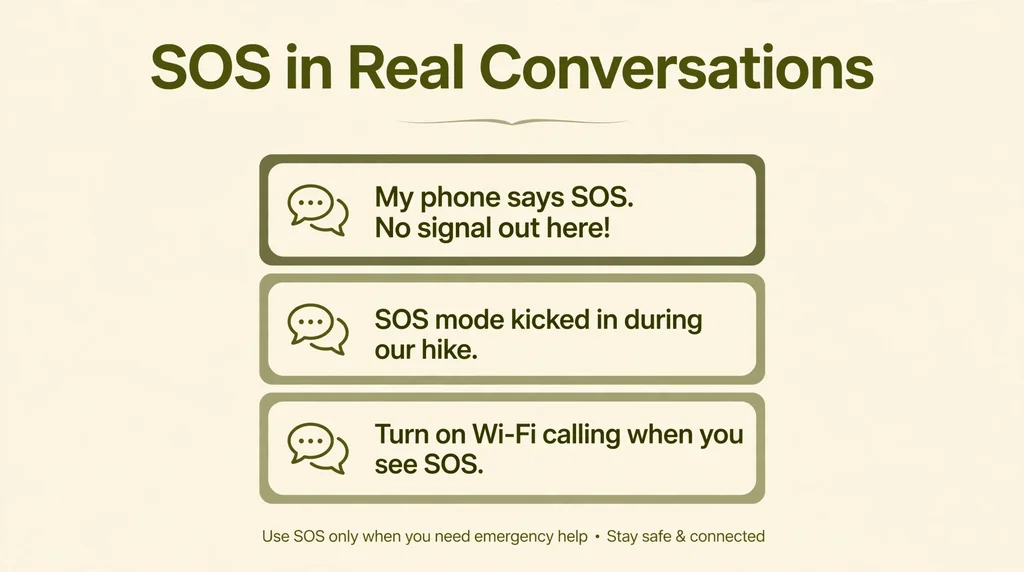
If you are in a situation where you truly need to make a call, the SOS feature is there to help.
You do not need to do anything special to enable emergency calling; the phone handles it automatically.
However, you should be aware that because you are not on your home network, the call quality might vary,
and you may need to provide your location details clearly to the emergency dispatcher.
If you have an iPhone 14 or later, some models also support satellite connectivity for emergencies, which can provide a way to reach out even when there is no cellular signal at all.
When you are in this mode, your primary goal should be to restore your normal connection. If you are in a building, try walking toward a window or stepping outside.
If you are driving, you might be passing through a dead zone, and the signal will likely return once you reach a different area.
Do not attempt to use data-heavy apps while in this state, as they will only drain your battery while failing to load.
Focus on the basics: get to a better signal area, try toggling your settings, and if you are still stuck, consider asking someone nearby if they have service.
If their phone is working, it might just be a local issue with your specific provider.
Professional and Practical Considerations
In a professional setting, having your phone drop to SOS mode can be disruptive.
If you are in the middle of an important conference call or waiting for a critical email, the sudden loss of service can feel like a disaster.
To mitigate this, many professionals use Wi-Fi calling.
If you enable Wi-Fi calling in your settings, your phone can route your calls and texts through your internet connection.
This means that even if your cellular signal drops to SOS, you can stay connected as long as you have a stable Wi-Fi network.
This is a lifesaver for people who work from home or in office buildings with thick walls.
Another practical tip is to check your carrier’s website for service outage maps.
If a large number of people in your area are reporting issues, it is likely a network-wide problem that you cannot fix on your own.
In these cases, patience is your best tool.
You can also monitor social media or news outlets to see if your carrier has announced any maintenance.
If you travel frequently, knowing how to manage your network settings is a valuable skill.
Being able to quickly identify why you lost service and knowing how to restore it can save you significant time and stress during your work day.
Comparing SOS to No Service
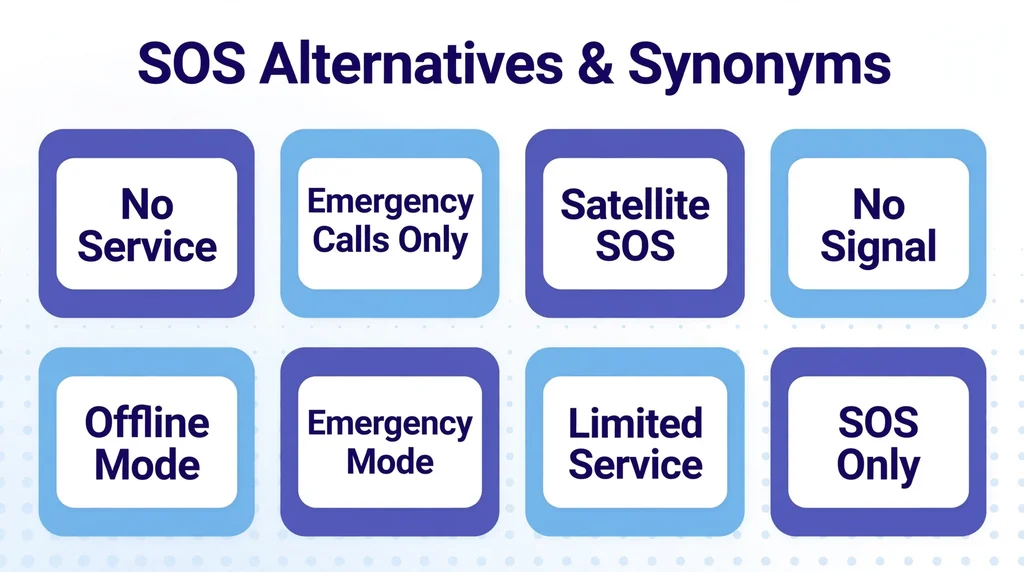
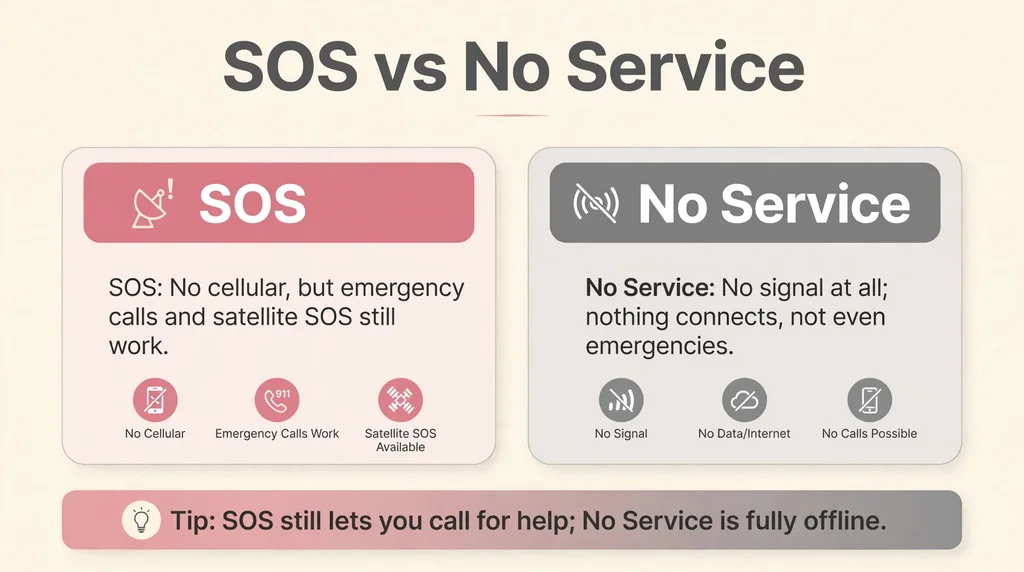
It is helpful to distinguish between seeing SOS and seeing a No Service indicator.
While they both mean you cannot reach your provider, they represent slightly different states. No Service generally means your phone cannot find any tower at all.
It is a total blackout of connectivity.
SOS, by contrast, means your phone has found a tower it can use for emergency purposes, but it cannot handshake with your specific provider for personal data or voice calls.
This distinction is important because it tells you something about your environment.
If you see No Service, you are likely in a very remote area or your device has a significant hardware issue.
If you see SOS, you are likely in a populated area where other carriers have towers, but your specific provider is either unavailable or experiencing a local issue.
This information can help you decide your next steps. For example, if you see SOS, you know that calling for help is possible if you really need to.
If you see No Service, you might need to move to a completely different location to regain any form of contact.
Regional and Cultural Variations
The way your phone displays these status messages can vary slightly based on your region and the local regulations of your carrier.
In some countries, the emergency network is highly robust, and phones will switch into this mode very quickly.
In others, the transition might be slower or handled differently by the local network infrastructure.
Additionally, the specific terminology used in your settings menu might change depending on the language you have selected for your device.
It is also worth noting that different carriers have different roaming agreements.
If you are traveling abroad, your phone might show SOS more frequently as it tries to negotiate with foreign towers. This is normal and expected.
Your phone is essentially a guest on a foreign network, and it has to follow the rules of that network.
If you are traveling, it is always a good idea to check your roaming settings before you leave.
Sometimes, disabling data roaming can prevent your phone from trying to connect to expensive, unstable networks, which might keep your connection more stable overall.
FAQs About iPhone Connectivity
1. Does SOS mode drain my battery faster?
Yes, it can.
When your phone is in this mode, it is constantly scanning for a signal, which uses more power than a stable connection.
2. Will I be charged for emergency calls in this mode?
No, emergency calls are free and do not use your cellular data plan, regardless of your carrier status.
3. Can I text while in SOS mode?
Generally, no.
This mode is reserved for emergency voice calls. You will not be able to send standard SMS or iMessages.
4. Is there a way to turn off the SOS icon?
You cannot manually turn off the icon. It disappears automatically once your phone successfully reconnects to your cellular network.
5. Does this happen more on older iPhones?
Hardware age can be a factor, but even the newest models can display this status if the network environment is poor.
6. Should I call my carrier if I see this often?
If you see it constantly in places where you usually have service, you should contact your carrier to check for account issues or a faulty SIM.
7. Does Wi-Fi calling help?
Yes, enabling Wi-Fi calling allows you to bypass cellular issues and use your internet connection for calls and texts.
Final Thoughts on Connectivity
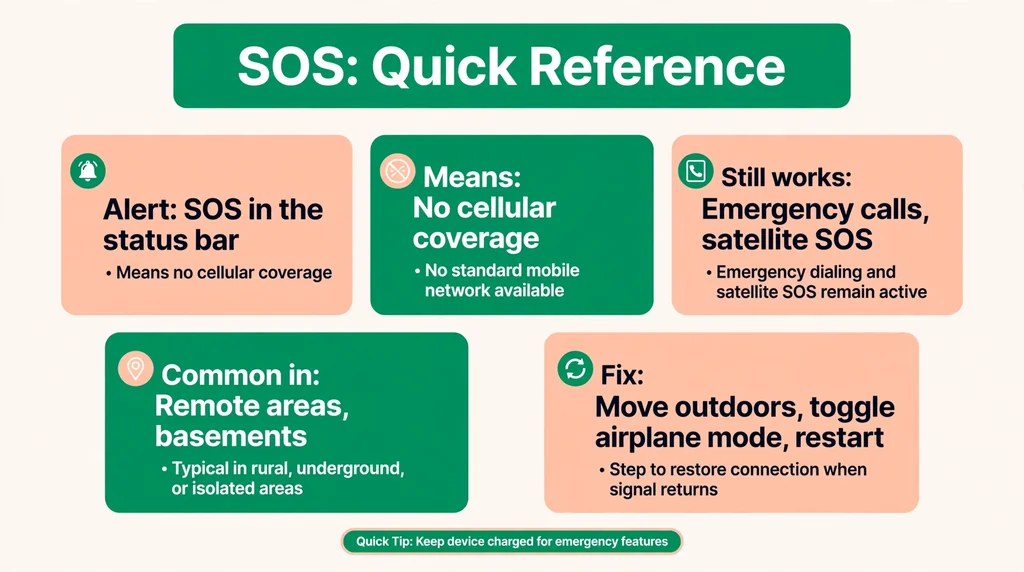
Seeing the SOS status on your iPhone is rarely a cause for alarm.
It is a built-in safety feature designed to keep you connected to emergency services when your primary network is unreachable.
By understanding that this is a temporary status caused by location, hardware, or network issues, you can approach the situation with calm.
Most of the time, a simple restart or moving to a different location will bring your signal back to full strength.
Keep your software updated, use features like Wi-Fi calling to stay connected in challenging environments, and remember that your device is working hard to keep you safe.
With these tips in mind, you can navigate any connectivity hiccups with confidence and get back to your day without unnecessary stress.